Review of the PC Pandora Computer Monitoring Program
PC Pandora can help you protect your kids from the dangers of the Internet by monitoring the computer and letting you know exactly what your teenagers are doing on the computer at all times. In ancient history, Pandora opened the jar that let out all of the evils of mankind and some of those evils have made their way to the Internet. PC Pandora helps you keep the lid on the jar and protects your kids from the Internet Predators and Cyber-Bullying that could be quite harmful to your children.
The installation and configuration of the computer spy program is quite simple but there are a few steps you may need to take into consideration to fully utilize the full potential of the monitoring program. Here is a full review of the PC Pandora PC and Internet monitoring program.
Being a computer spy program, PC Pandora will be detected as a Virus or Spyware so the first thing you need to do is exclude it from your Antivirus software so it will not be detected. Most of the Antivirus software packages have an exclusion list that allows you to exclude PC Pandora from being detected. You may have to look at the help file of the program you are using to exclude it from being detected. This is what the exclusion list for the Enterprise version of Symantec Antivirus looks like and you will find something similar to this in your protection package.
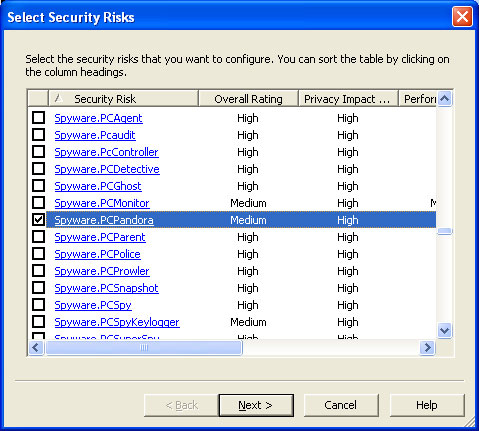
Then you just click next and tell it to exclude PC Pandora.

With that important step being done, you can go out to the PC Pandora website and either purchase the program or download a free trial to see if it is right for you. Once you begin the installation, this is the screen you will see.

Then you will have to agree to the license agreement on the next two screens. Once you have done that, a screen will pop up with where you can set the main security options. I will not show that screen here because it shows the default key sequence to bring the program up after it is installed (Sorry, Kids). It is recommended that you change the default key sequence and remember it any way you can. This screen also gives you the option to run PC Pandora in stealth mode or visible mode, that choice is yours. Click next and the installation is complete but you will need to reboot your computer.
Once the computer reboots, PC Pandora is monitoring the computer. You can access the control panel by entering the key sequence that you defined earlier and entering your password to access the viewer.
Once you are logged in, you will be greeted with the PC Pandora Viewer Application. This is where you can see everything that has been done on the computer and set configuration options. This screen shows you some of the options that can be changed. You have total control over what PC Pandora will monitor and when it monitors the computer.

This is a screenshot of the Viewer Application. Here is where you can see everything that has been done on the computer. You can see snapshots of what was on the screen at any given time. It also shows you all programs opened, websites visited, keystrokes typed, chat conversations and search queries that have been made.


The PC Pandora Application Viewer is has a multitude of tools that you can use. You can generate custom reports, set up an email account to send the log report and chat control where you can block chat programs if you need to.

Here is a screenshot of the custom reports you can generate.

Here is a screenshot of the chat programs you can block.

PC Pandora is a very well rounded and easy to use tool to help you keep your kids safe on the Internet. You need to know what they are doing on the Internet at all times and you cannot possibly stand over their shoulder to ensure their safety. Let PC Pandora be your eyes to their world. Your kids could be getting groomed by an Internet predator or Cyber-Bullied. Teenagers openly chat about drugs, sex and suicide on the Internet. You need to know what they are chatting about and posting about themselves online for their safety and your sanity. Let PC Pandora put the lid on the dangers of the Internet. Keep you kids safe!
|

